
Signing up your organisation
Your organisation needs an employer profile before it can register employees. The person who signs up becomes its authorised representative. If your organisation already has a profile, don't create another: ask its authorised representative to invite you.
- Go to Create an employer profile.
- Business registry: registered companies, partnerships and cooperatives enter the verification code from page 1 of their Company Information Sheet, downloaded from business.egov.mv. The portal fills in your organisation's details from the registry. Government agencies, state institutions and NGOs choose Enter details manually.
- Check the organisation, address and contact details, and enter the authorised representative's details and ID.
- Create your account and confirm that you are authorised to act for the organisation.
- If we email you a verification link, open it, then sign in.
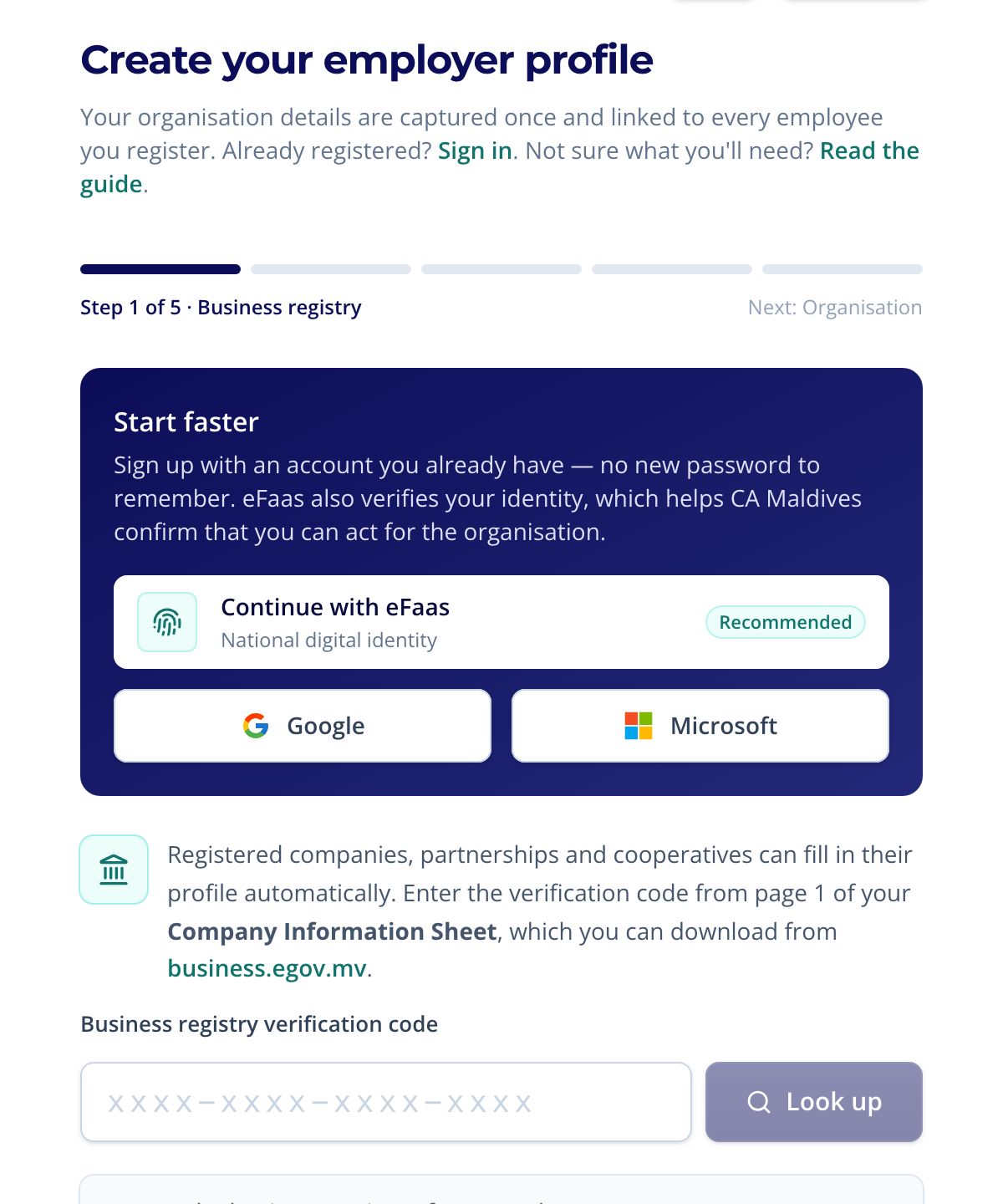
Registered businesses may be verified straight away against the registry. Otherwise CA Maldives verifies your organisation's details. You don't need to wait for that: you can start registering employees as soon as you sign in.
The Company Information Sheet must be recent. If the portal says it is too old, download a new one. If it says your organisation already has a profile, ask its authorised representative to invite you.
Signing in
- Sign in on the sign-in page with your email and password.
- Forgot your password? Use Forgot password and we'll email you a link to choose a new one.
- Didn't get the verification email? Check your spam or junk folder, or try signing in: we'll send you a new link. If it still doesn't arrive, call the hotline.
- Represent more than one organisation? Use one login for all of them; see Managing several organisations.
How registration works
Registering an employee takes four steps. Your progress is shown on the dashboard until your first submission.
- Add employees: one at a time with the online form, or all at once with the Excel template.
- Upload supporting documents for each employee on the Documents page.
- Declare and submit on Review & submit. Your authorised representative signs the declaration.
- Track the review. CA Maldives reviews each employee. You get a notification at each step, and it appears on the Applications page.
Nothing is sent to CA Maldives until you submit. Until then, employees are saved as drafts that you can edit or discard.
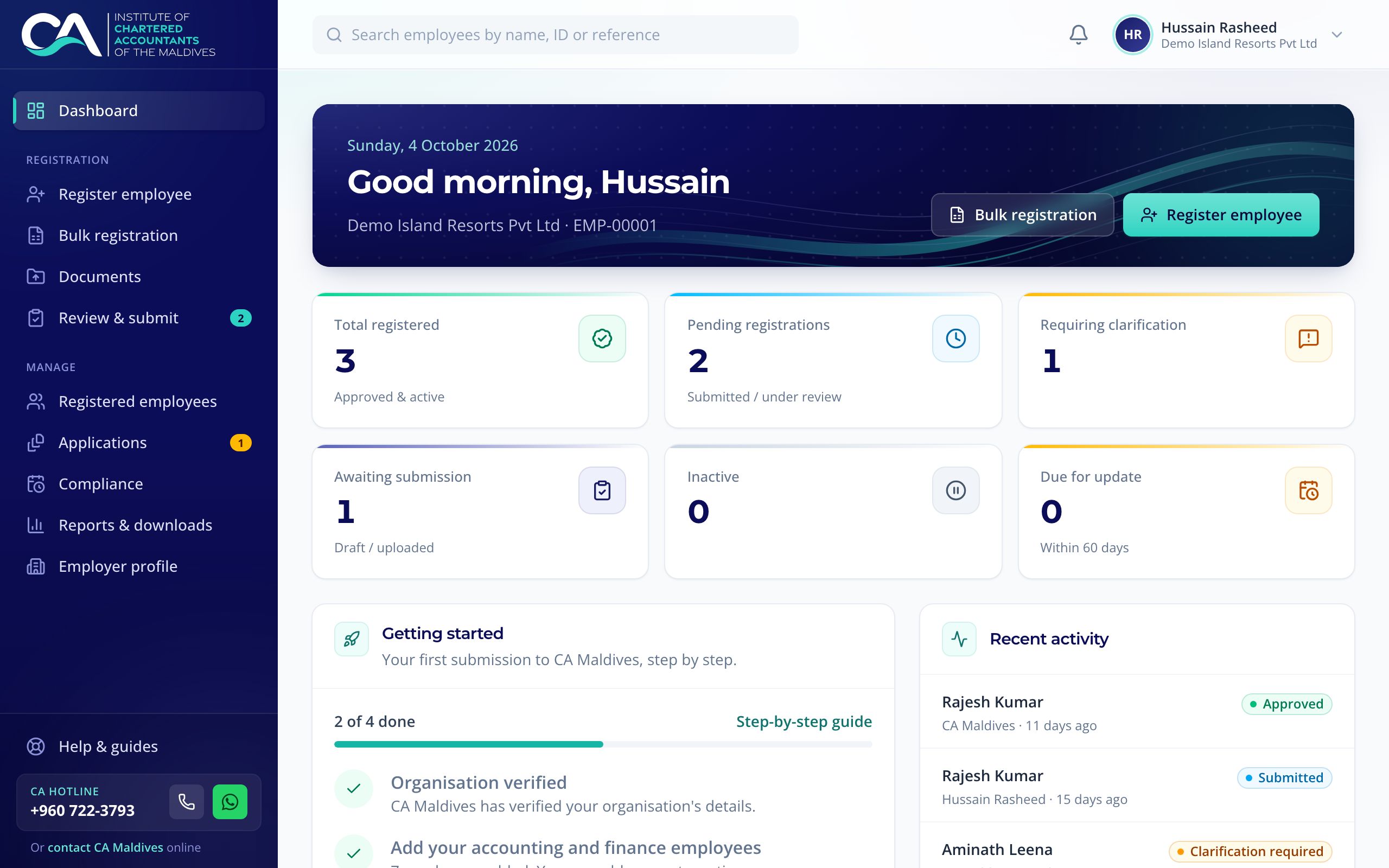
Once you have submitted, the checklist is replaced by Outstanding actions: drafts still to submit and employees CA Maldives has asked about. The dashboard also shows your recent submissions, recent activity and upcoming deadlines.
Your organisation and colleagues
Your Employer profile holds your organisation's details. For registered businesses they come from the Ministry of Economic Development's business registry, and the profile may be verified automatically when you sign up. Otherwise CA Maldives verifies it. You can register and submit employees while verification is pending. Approvals follow once it is verified.
- You can't edit the entity name or registration number yourself. If your organisation's name or address has changed at the business registry, the authorised representative can enter the verification code from a new Company Information Sheet under Business registry on the profile, check the changes and apply them. Otherwise, contact CA Maldives.
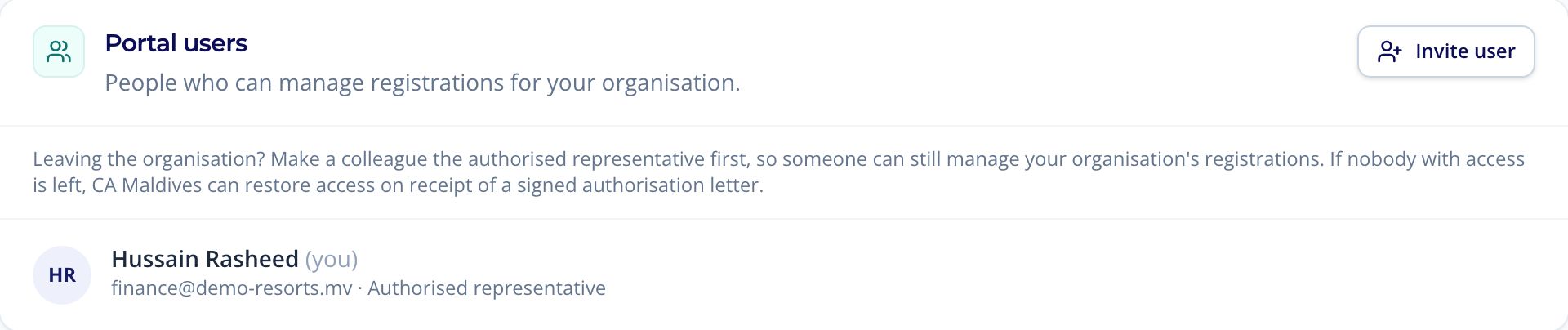
- The authorised representative is the only person who can update the employer profile, manage portal users and sign the declaration when submitting.
- The authorised representative can invite colleagues with Invite user in the Portal users section of the profile. The invitation is emailed and is valid for 7 days. Colleagues can register employees and upload documents, but the authorised representative must submit. A colleague who no longer needs access can be switched off with Disable.
- Leaving the organisation? The authorised representative should first choose Make representative next to a colleague in Portal users and then Hand over, so someone can still manage the account. If nobody with access is left, CA Maldives can restore access on receipt of a signed authorisation letter.
Registering one employee
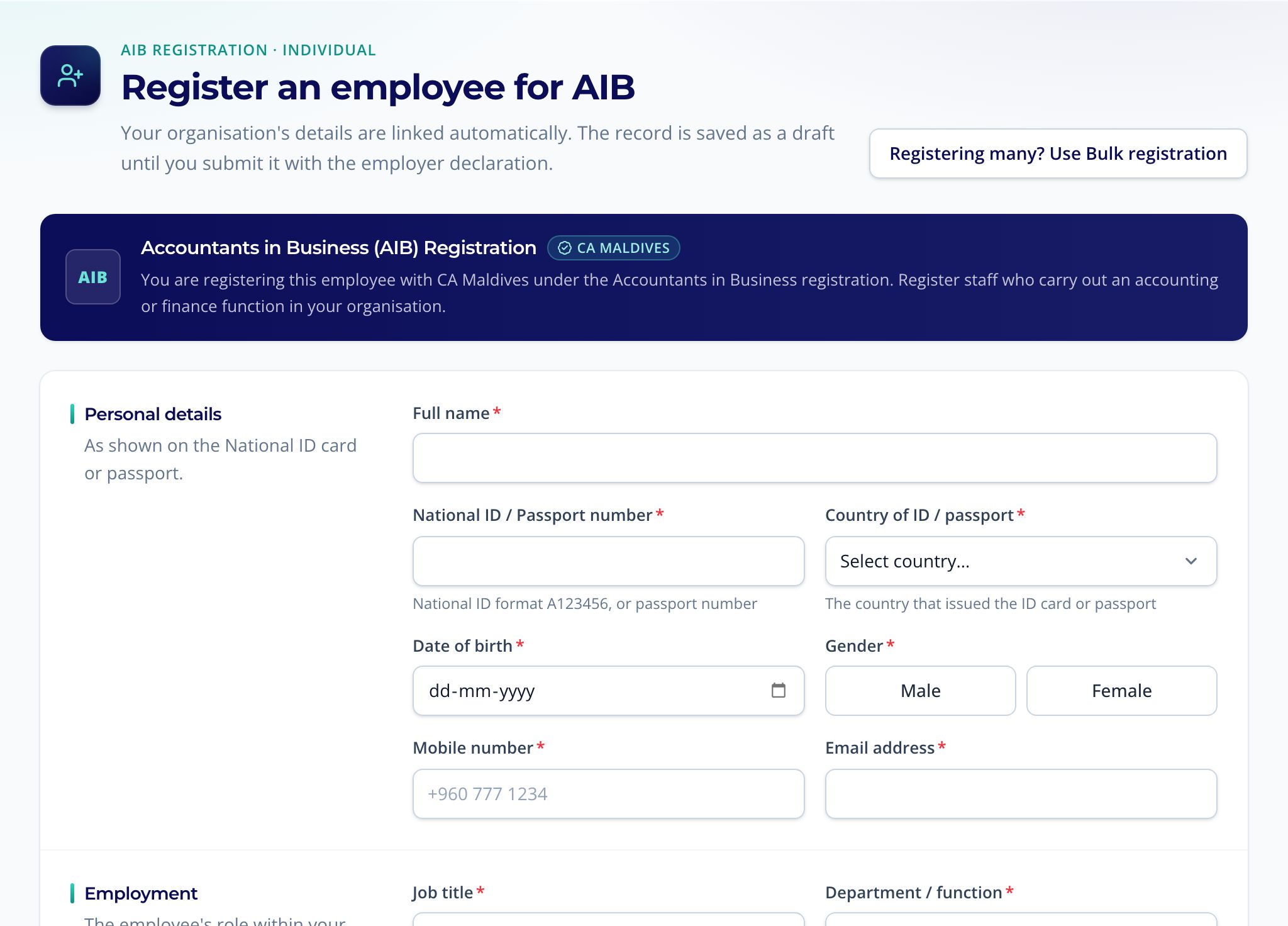
Use Register employee. Your organisation's details are linked automatically. Enter the employee's personal, employment and qualification details.
- ID number: enter a Maldivian National ID card number (for example A123456) or a passport number, and the country that issued it. National ID cards are taken as issued by the Maldives.
- Qualifications: each academic or professional qualification you declare needs its certificate.
- You can attach documents on the form itself, or upload them later from the employee's record or the Documents page. Select Save employee, or Save & add another to go straight on to the next one. The employee is saved as a draft.
Registering many employees
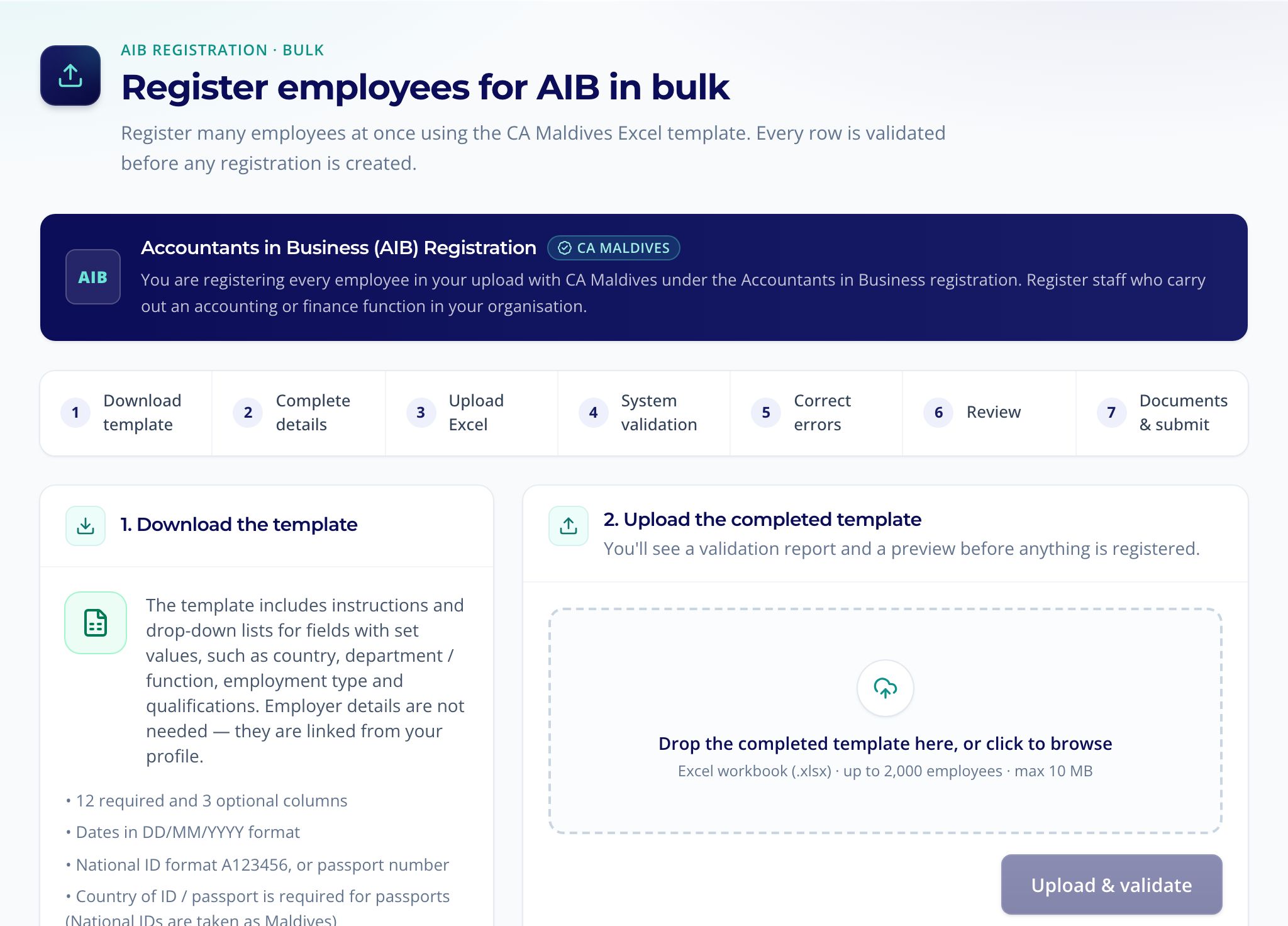
- On Bulk registration, select Download Excel template. Fill in one row per employee and don't change the column headings. The template has drop-down lists for fields with set values, such as country and department.
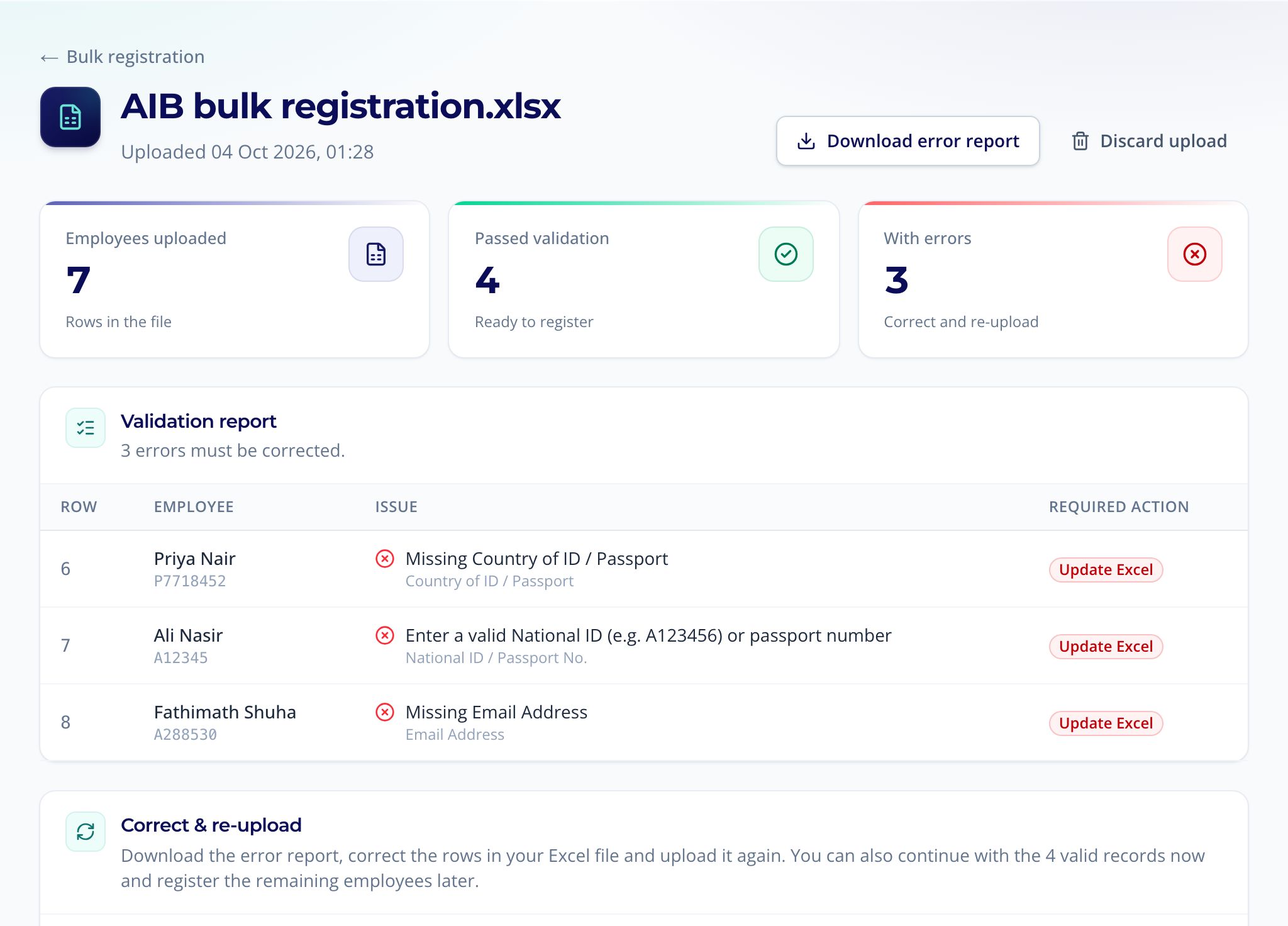
- Upload the completed file (.xlsx, up to 2,000 employees and 10 MB) and select Upload & validate. Every row is checked, and you see a validation report and a preview before anything is created. Warnings are flagged for you to check but don't stop a row being registered.
- If some rows have errors, download the error report, correct those rows and select Upload corrected file. You can continue with the valid rows now and add the rest later, or Discard upload to start again.
- Select Create employee records, tick that you have reviewed the uploaded records and select Create records. The valid rows become employees with the status Uploaded. Nothing is sent to CA Maldives yet: upload their documents, then submit them on Review & submit.
Your earlier uploads are listed under Recent uploads on the same page, so you can go back to a validation report.
Uploading documents
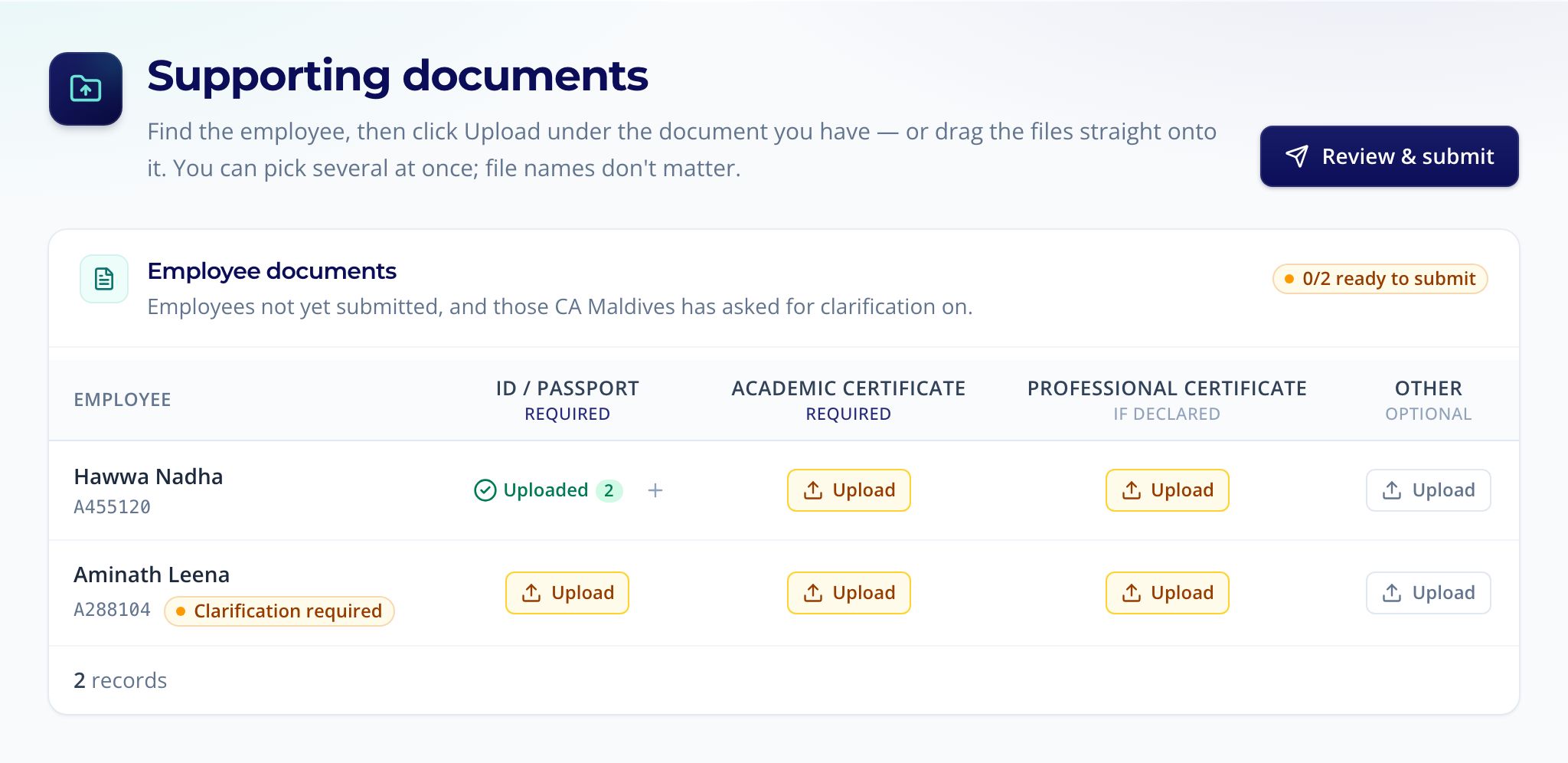
On Documents, find the employee and click Upload under the document you have, or drag the files onto it. You can pick several files at once, and file names don't matter.
| Document | Formats | Required |
|---|---|---|
Identification document For each employee | PDF, JPG, PNG · up to 10 MB | Required |
Work permit For each employee | PDF, JPG, PNG · up to 10 MB | Required for expats (ID not issued by the Maldives) |
Academic qualification certificate For each employee | PDF, JPG, PNG · up to 10 MB | Required |
Professional qualification certificate For each employee | PDF, JPG, PNG · up to 10 MB | If that qualification is declared |
CV For each employee | PDF, JPG, PNG · up to 10 MB | Optional |
Other supporting document For each employee | PDF, JPG, PNG · up to 10 MB | Optional |
The Documents page shows how many employees are ready to submit. An employee can only be submitted once every required document is uploaded.
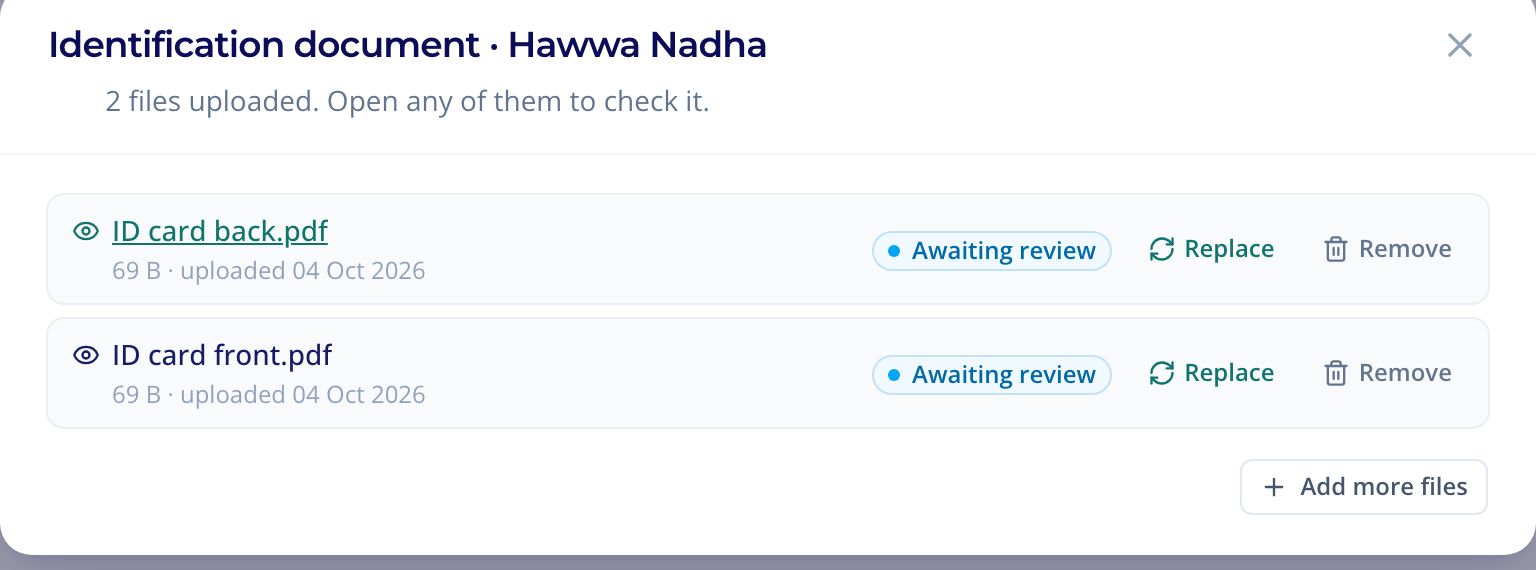
Checking, replacing and removing files: select Uploaded under a document to see its files. From there you can open each file, Replace it, or Add more files. A file CA Maldives hasn't reviewed yet can also be taken back with Remove and then Remove file, for example if you uploaded it for the wrong person. It won't be sent to CA Maldives, and the removal is noted in the employee's history. If CA Maldives rejects a file, the cell shows Re-upload.
Declaring and submitting
- Open Review & submit. Employees with all their documents are already selected. Employees with documents missing show what is missing.
- Choose the employees to submit and read the declaration.
- The authorised representative ticks I confirm the declaration above, selects Submit (it shows how many employees are selected) and then Confirm & submit. Their name, the time and their IP address are recorded with the declaration.
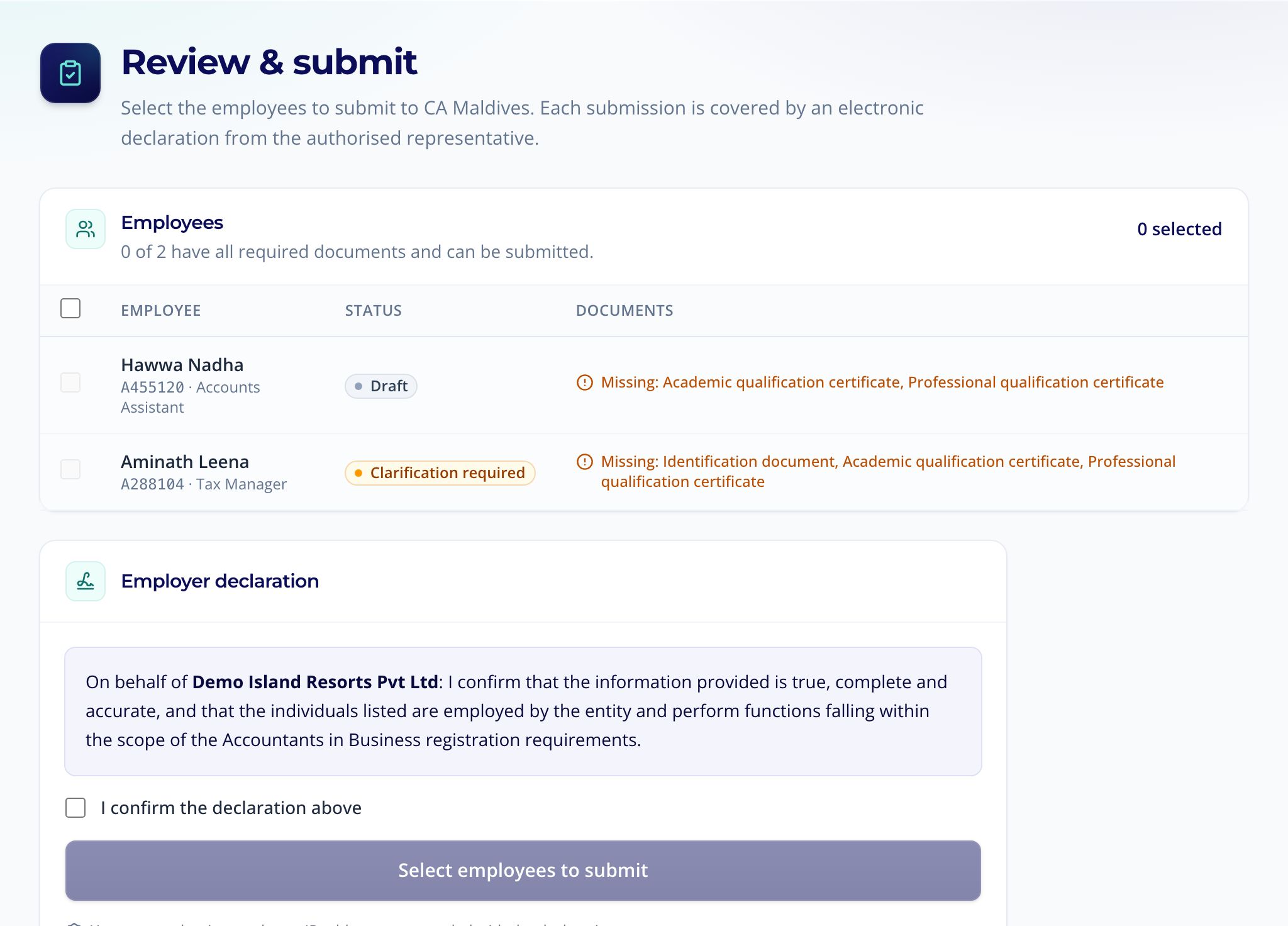
You get a submission reference, and CA Maldives is notified. You can't edit submitted employees while CA Maldives reviews them. Colleagues who aren't the authorised representative can prepare everything and ask them to submit.
After you submit
Each employee's application moves through these statuses. You get a notification whenever it changes, and the Applications page has a tab for each status with CA Maldives' latest message.
- Draft
- Application started but not submitted. Upload the documents, then submit.
- Uploaded
- Employee data uploaded and awaiting submission. Upload the documents, then submit.
- Submitted
- Application submitted to CA Maldives. Nothing to do; CA Maldives will start the review.
- Under review
- Application is being reviewed. Nothing to do unless CA Maldives asks for clarification.
- Clarification required
- Additional information or documents required. Open the employee, make the changes asked for and select Resubmit.
- Approved
- Employee successfully registered. Download the confirmation from the employee's record or Reports & downloads.
- Rejected
- Application does not meet the registration requirements. The reason is shown on the employee's record. You can register them again with corrected details.
- Inactive
- Registration is no longer active. Set by CA Maldives. You can still update the details or deregister the employee; contact CA Maldives to have it reactivated.
- Deregistered
- Employee has been removed from the employer's registration. Kept for your records. Applications you withdraw also end here.
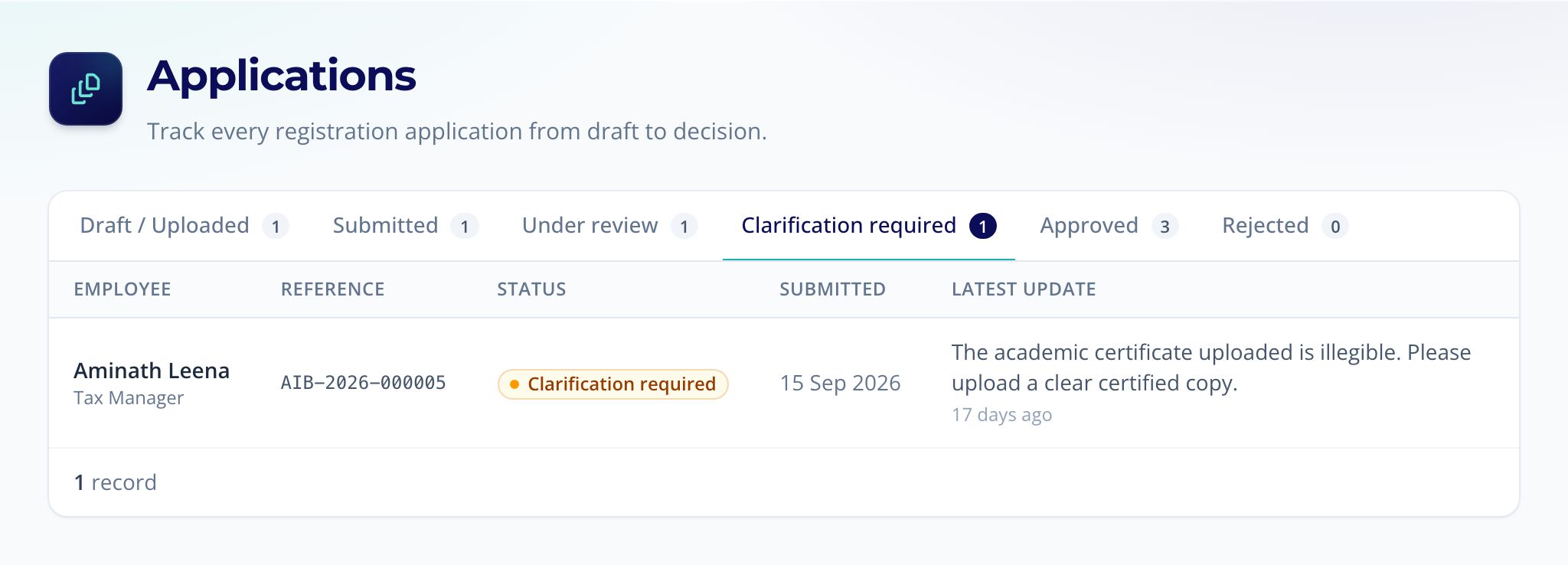
If CA Maldives asks for clarification, their request is shown at the top of the employee's record. Make the changes asked for, upload any documents and select Resubmit.
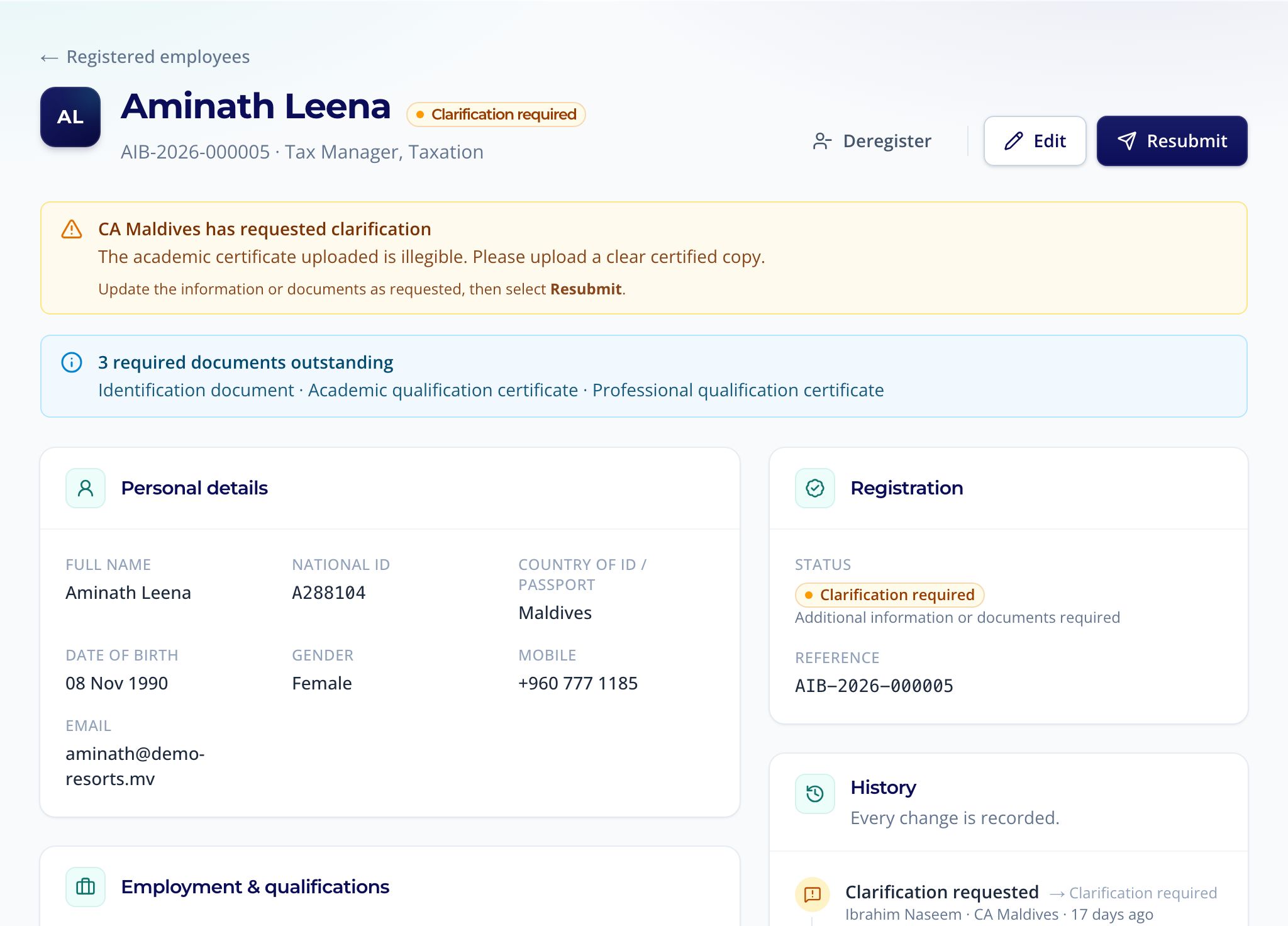
Once an employee is approved, download their registration confirmation with Confirmation on their record. Every change to the record is listed under History.
Keeping registrations up to date
- Finding someone: search by name, ID or reference from the search bar at the top of every page. Registered employees lists your current employees, with filters by status and function, and Export downloads the list to Excel. Deregistered employees are shown when you filter by that status.
- Changing details: open the employee and choose Edit. For approved or inactive employees the change goes to CA Maldives for review, and the registered details stay as they are until it is approved. The record shows the requested changes meanwhile; editing again replaces the request. The ID or passport number can't be changed: if it is wrong, deregister the employee and register them again.
- Annual confirmation: the Compliance page lists approved registrations whose annual confirmation is due within 60 days, and we remind you 30 days before the due date. Select employees whose details are still correct and choose Confirm as current(the button shows how many you selected), or update or deregister them. You can do the same from Registered employees.
- When someone leaves: open the employee and choose Deregister, giving the effective date (up to 90 days ahead) and reason, then Confirm deregistration. CA Maldives confirms deregistration of registered employees; until then the record shows the request and the employee stays on the register. Applications that haven't been decided yet are withdrawn straight away. To remove a draft you haven't submitted, use Discard draft instead. That deletes it and its files and can't be undone.
- Confirmations and exports: download registration confirmations and Excel exports from Reports & downloads. An approved employee's confirmation is also on their record.
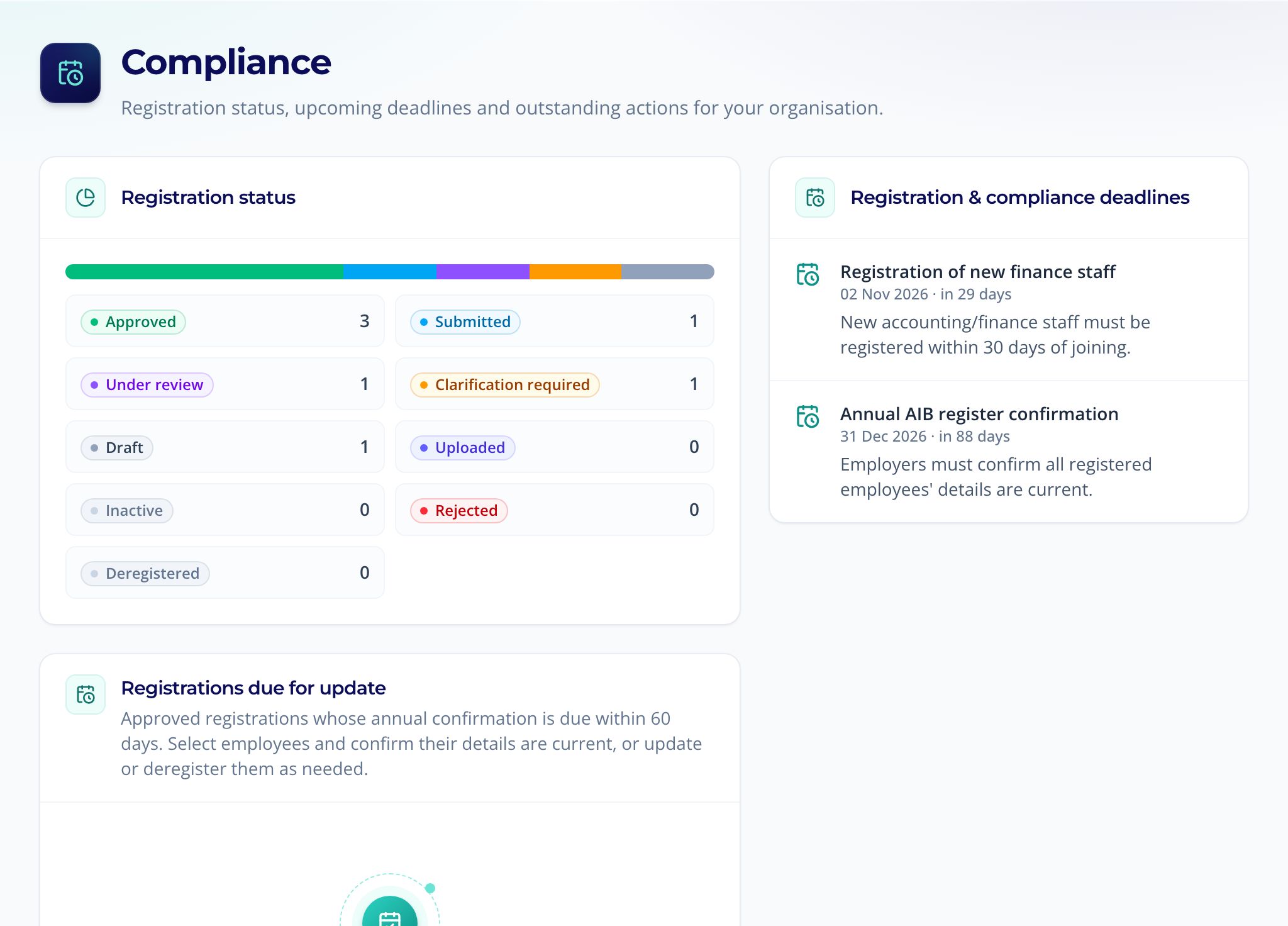
The Compliance page also lists deadlines published by CA Maldives. We remind you 7 days before each one.
Managing several organisations
If you represent more than one entity, you don't need another login. Choose Register another entity from the account menu at the top right. You become its authorised representative. Once you have more than one, Switch entity appears in the same menu. Each organisation's employees and documents are kept separate. If another organisation invites you, accept the invitation with your existing login and it appears there too.
Notifications
The bell at the top of every page shows how many unread notifications you have. Open it to see them all on Notifications, where you can mark them as read. Every portal user in your organisation gets them, in the portal and by email, for example when an application changes status, CA Maldives sends a message, a bulk upload has been checked or a deadline is near. The authorised representative also gets a text message for clarification requests, decisions and renewal reminders.
Your account and security
On Account & security you can change your password, turn on two-step verification with an authenticator app, and sign out devices you no longer use. We recommend two-step verification for everyone, especially authorised representatives.
- When you turn on two-step verification, save the recovery codes. Each one signs you in once if you lose your phone.
- For your protection, linking a sign-in or changing two-step verification may ask you to sign in again first.